📅 Welcome to Skedge!
Skedge is a simple, shareable schedule for our department.
⚠️ You need to save or share the link to save the skedge.
Please read the sections below to better understand how to use skedge.
🔗 How Skedge works
Skedge doesn’t have accounts, logins or a database. Your whole schedule is stored inside the link you use to open it. Think of the link as a sealed note: it holds the courses, the instructors, the times and the schedule title. Whoever opens the note sees exactly what you saw.
Nothing is saved on a server
There is no “save” button because there is nothing to save to. No one, including us, keeps a copy of your schedule.
Sharing means sharing the link
To show someone your schedule, send them your link. To pass along an edit, send a new link.
Every change makes a new link
As you add or edit courses, the link at the bottom of the calendar updates itself. Copy it when you’re done.
A note on privacy: because the schedule is in the link, anyone who has the link can read it. Share it the way you’d share any department document.
✨ Why use Skedge
Fit the standard times
The university has standard meeting patterns, such as Monday/Wednesday 1:30-hour blocks. Classes that follow them get the best chance at rooms, while classes outside them get the lowest priority. Skedge checks every course as you type and shows a ⚠ notice when one doesn’t fit, so you can adjust before it causes a room problem.
See the whole department
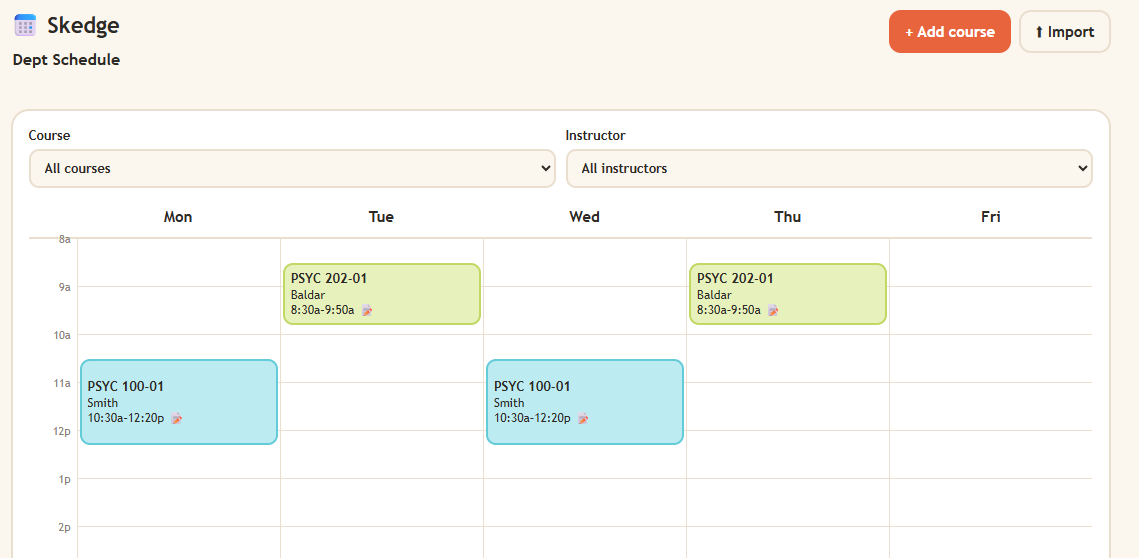
Instead of reading rows in a spreadsheet, you see a weekly calendar, Monday to Friday. Classes that overlap sit side by side, so clashes are easy to spot. Each instructor has their own color, so you can see at a glance who is teaching when.
Filter by course or instructor
Want to see every section of PSYC 100, or only one instructor’s week? Pick a name from the filters and the calendar and list narrow right down. All sections of the same course are grouped together.
Track changes
When someone sends you an edited schedule, a companion page called Skedge Align compares it with yours. It lists every addition, removal and change, shows them on a calendar, and lets you accept or reject each one. Then it gives you a new link with your decisions applied.
🧭 How to use Skedge
Open a schedule
Click the link you were sent. Skedge opens with that schedule on the calendar. If you open Skedge without a link, you’ll start with an empty calendar.
Name your schedule
Click the text at the top, under “Skedge”, and type a name such as “Fall 2026 Psychology”. The name travels with the link.
Add a course
- Press + Add course.
- Type the course (for example PSYC 100-01, with the section number after a dash) and the instructor.
- Pick the days and the start and end times. Credits, load, instructional format and delivery mode are optional but helpful.
- If a ⚠ notice appears, the times don’t match a standard pattern. Press View standard patterns to see the options. You can still go ahead by ticking the box to confirm you understand.
- Press Add to schedule. The course appears on the calendar.
Different times on different days? Tick Irregular schedule and add each meeting on its own line, with its own day and time.
Edit or delete a course
Click a course on the calendar (or a row in the list below it). A small card shows the details and the notes. Press Edit to change anything, or Remove to delete it. Remove asks you to press a second time, so you can’t delete by accident.
Filter the view
Above the calendar, choose a course, an instructor, or both. Press Clear filters to go back to everything. The list view below the calendar follows your filters, and you can sort it by course or instructor by clicking the column heading.
Share your schedule
Under the calendar you’ll find your link.
🔗 Copy link copies it so you can paste it anywhere.
📤 Share opens your device’s share menu (email, messages and more), where available. If sharing isn’t available, it copies the link instead.
Export to a spreadsheet
⬇ Export CSV downloads a file you can open in Excel. ☷ Copy as table copies the schedule so you can paste it straight into a spreadsheet. Both include only what is showing, so clear your filters first if you want every course.
Start from a spreadsheet
Press ⬆ Import to open Skedge Import. Choose your department’s schedule spreadsheet, check the preview, and it gives you a link that opens Skedge with all those courses already in place.
🧰 The companion pages
Skedge Import
Turns a department schedule spreadsheet into a Skedge link. Nothing is uploaded anywhere; your schedule lives in the link.
Skedge Align
Compares two Skedge links, shows what changed, and lets you accept or reject each change before making a new link.
A simple way to work together: the chair keeps a main link. Each faculty member opens it, makes their edits and sends back their new link. The chair uses Skedge Align to review the changes and creates the next main link.
🙋 Common questions
Do I need an account or a password?
No. If you have the link, you can use Skedge.
I closed the page and my changes are gone. Can I get them back?
If you copied or sent a link after making your changes, open that link. If not, the changes weren’t kept anywhere, so you’ll need to re-enter them. Get into the habit of pressing Copy link before you leave.
Why doesn’t the address at the top of my browser change?
It’s normal. Use the link under the calendar, since that one always includes your latest changes.
Can two people edit at the same time?
Each person works on their own copy and sends back their own link. Skedge Align then combines the changes, so nobody overwrites anyone else’s work.
Who can see my schedule?
Anyone you give the link to, and anyone they pass it on to. Nothing is posted publicly.
The link is very long. Is that a problem?
No. That’s because it holds the entire schedule. Pasting it into an email or message works fine.
📅 Skedge · a department scheduling tool that lives in a link